How to ZIP Your Resume and Portfolio: The Format HR Loves (Free Tool)
Are you tired of sending multiple files for job applications, only to have them rejected due to large sizes or disorganized formats? HR teams receive hundreds of applications daily, and zipping your resume and portfolio is a simple way to make their lives easier—while ensuring your materials get the attention they deserve. This guide will show you exactly how to bundle your documents using a free tool, following the format that HR professionals prefer.
Why HR Teams Prefer Zipped Resumes & Portfolios
HR professionals prioritize efficiency and organization. Zipping your application materials addresses key pain points they face:
Key Benefits of Zipping Your Application Materials
- Reduced file size: Avoids email attachment limits and speeds up uploads to application portals.
- Organized bundle: Combines multiple files (resume, portfolio samples, cover letter) into one easy-to-manage package.
- Preserved formatting: Ensures your documents retain their layout (no broken links or distorted images) across different devices.
Step-by-Step Guide to ZIP Your Resume & Portfolio (Free Tool)
We’ll use 7-Zip—a free, open-source compression tool trusted by millions—to create your HR-friendly ZIP file. Follow these steps:
What You’ll Need
- Your updated resume (PDF or DOCX format is recommended).
- Portfolio files (work samples, case studies, or project links saved as PDFs/images).
- 7-Zip (download from 7-zip.org—it’s free and ad-free).
Step 1: Gather & Organize Your Documents
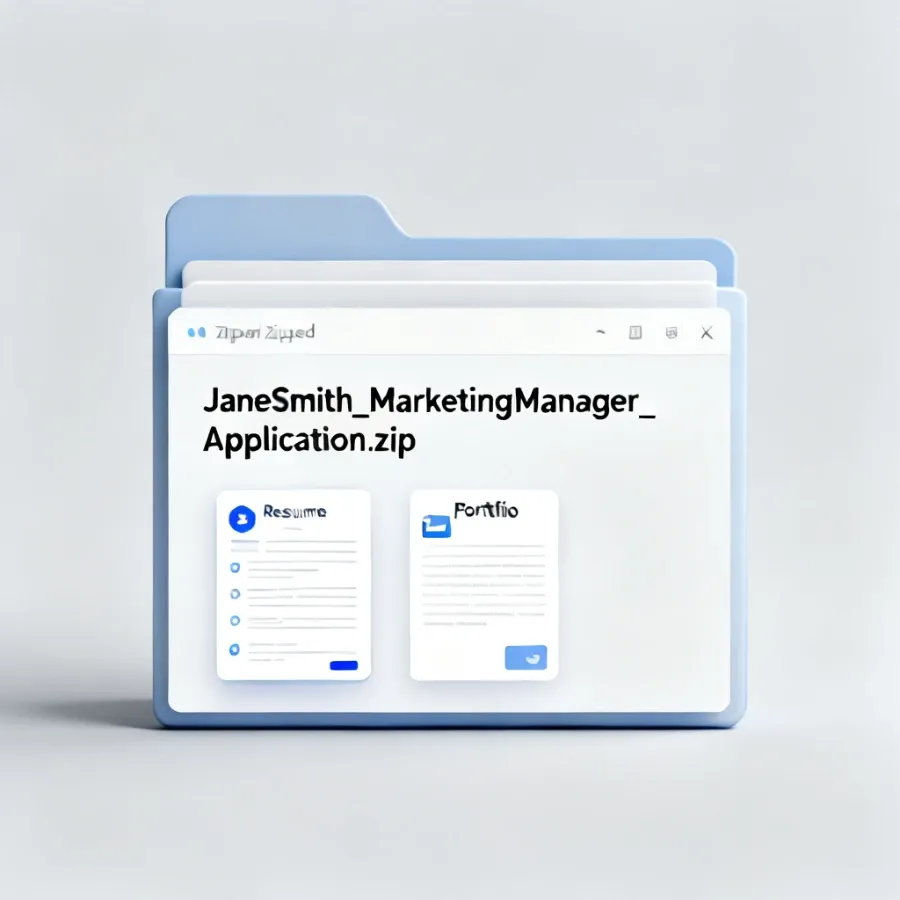
Create a new folder on your desktop and name it clearly (e.g., “JaneSmith_MarketingManager_Application”). Add all relevant files to this folder:
- Resume
- Cover letter (optional but recommended)
- 2-3 portfolio samples (keep them concise—1-2 pages per sample)
Step 2: Install 7-Zip
- Download the appropriate version for your OS (Windows/macOS).
- Run the installer and follow the on-screen instructions (default settings work fine).
Step 3: Zip the Folder
- Right-click the folder you created.
- Select 7-Zip → Add to archive.
- In the pop-up window:
- Choose ZIP as the format (HR systems universally support this).
- Set compression level to Normal (balances size and speed).
- Keep the filename the same as your folder (e.g., “JaneSmith_MarketingManager_Application.zip”).
- Click OK—your ZIP file will be generated in the same location.
Step 4: Verify the ZIP File
Double-click the ZIP file to open it. Ensure all files are present and can be opened without errors. This step prevents you from submitting a corrupted package.
Final Tips for Submitting Zipped Files
- Avoid password protection: HR teams may not have access to your password, leading to your application being ignored.
- Check job posting guidelines: Some companies may specify unzipped files—always follow their instructions first.
- Keep file size under 10MB: Most application portals have limits, so compress if needed (use “High” compression level in 7-Zip for larger files).
Conclusion
Zipping your resume and portfolio is a small but powerful way to showcase your professionalism. By using a free tool like 7-Zip, you create a polished, HR-friendly package that stands out from disorganized applications. Follow these steps to streamline your job search and increase your chances of landing an interview.
Remember: Every detail counts—from your resume content to how you present your materials. A well-zipped application is a great first step!
Need to create a ZIP file?
Create ZIP File