How to Zip Multiple Photos Online? No Install Needed, Guide for Phone & PC
Have you ever faced these “digital breakdowns”?
- Messenger Limits: You want to share hundreds of holiday photos, but WhatsApp or Email limits you to a few at a time. You have to select them one by one, and the receiver has to download them one by one.
- Email Bounces: You try to send product photos to a client, but the email bounces because there are too many attachments, or the client complains about downloading 50 separate files.
- No Software: You’re at a print shop or using a borrowed computer that doesn’t have WinRAR or 7-Zip, and you can’t install anything.
Actually, you don’t need complex software. This guide shows you how to pack photos into a ZIP online. Whether you use iPhone, Android, Windows, or Mac, you can do it in 30 seconds via browser. Free, Secure, No Ads.
Why Use an “Online ZIP Creator”?
In the mobile era, Online ZIP Tools are often better than installing software:
- No Install Needed: Save storage space. Open and use instantly.
- Cross-Platform: Same experience on iOS, Android, and PC. No need to find different apps.
- Privacy First (Crucial): Unlike traditional online tools that upload your files, our tool uses WebAssembly to process files locally in your browser. Your photos never leave your device.
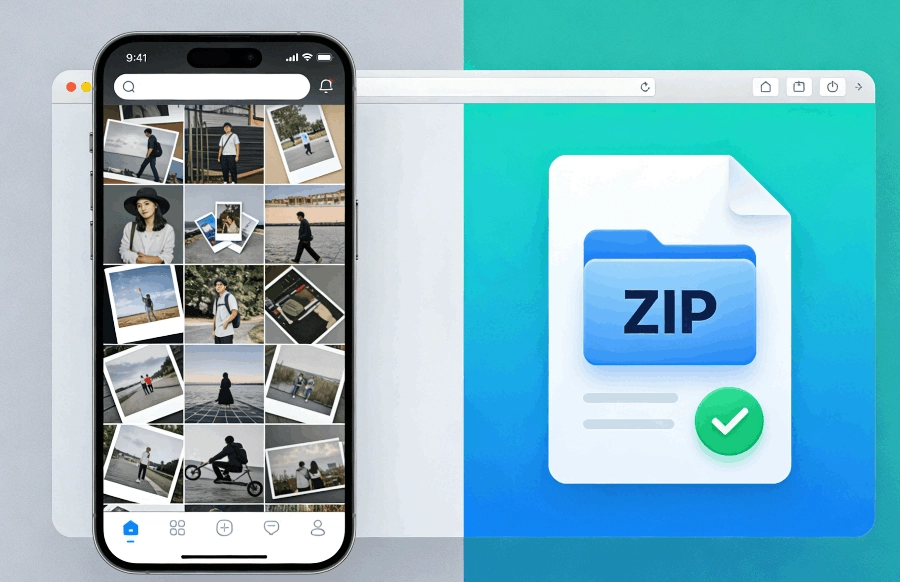
3 Steps to Zip Photos Online
The process is the same for phones and computers.
Step 1: Open the Tool
No registration required. Just visit our Zip Creator page in Chrome, Safari, or Edge. Clean interface, no confusing buttons.
Step 2: Select Photos
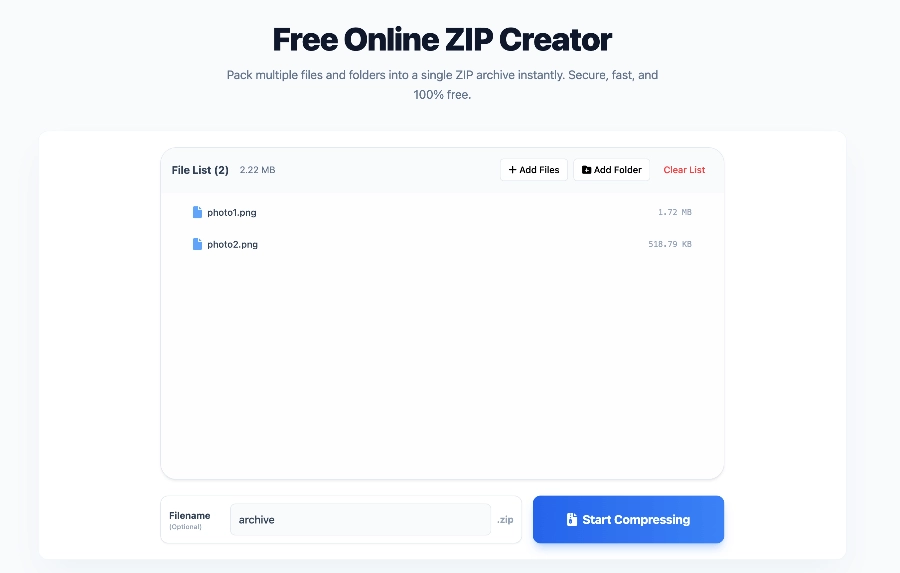
Click the central “Select Files” button.
- Mobile: It opens your gallery. You can swipe to select hundreds of photos at once.
- PC: Hold
Ctrl(Windows) orCommand(Mac) to select multiple files.
Since processing is local, there’s no uploading time. Even hundreds of HD photos are added instantly.
Step 3: Create & Download
Click “Create ZIP”.
The system generates a standard ZIP file instantly.
- iOS: Saved to “Files” -> “Downloads”.
- Android: Saved to “Download” folder.
- PC: Saved to your chosen path.
Pro Tips
1. Rename Your ZIP
The default name might be archive.zip. Rename it to something professional before sending, like Holiday_Photos_2026.zip or Product_Shots_ClientA.zip.
2. Mix File Types
You aren’t limited to photos. You can select PDFs, Word docs, and videos together and zip them into one package.
Summary
Next time you need to send multiple photos, don’t send them one by one. Remember: Open Browser -> Select Photos -> Create ZIP. Secure, Free, Efficient.
Bookmark this tool for your next emergency!
Need to create a ZIP file?
Create ZIP File